Installing Oh-My-Zsh on Debian-Based Systems
By Hildeberto Mendonca, on Friday, February 28, 2025
Zsh and Oh-My-Zsh
Zsh (Z shell) defines itself as a "Shell with lots of features". Indeed, it's a tool to enhance the shell's capabilities. Indispensable for those working in Unix-based systems. To make Zsh simpler, there is Oh-My-Zsh, a framework for managing Zsh configuration using the theme concept. The goal of this post is to get you all set with Oh-My-Zsh on your Debian Linux system.
To start, let's install Git, used by the script that install and updates Oh-My-Zsh, and Zsh:
$ sudo apt-get install git zsh
$ zsh --version
You may see a version equal to or greater than 5.1.1. The next step is the installation of Oh-My-Zsh:
$ sh -c "$(wget https://raw.github.com/robbyrussell/oh-my-zsh/master/tools/install.sh -O -)"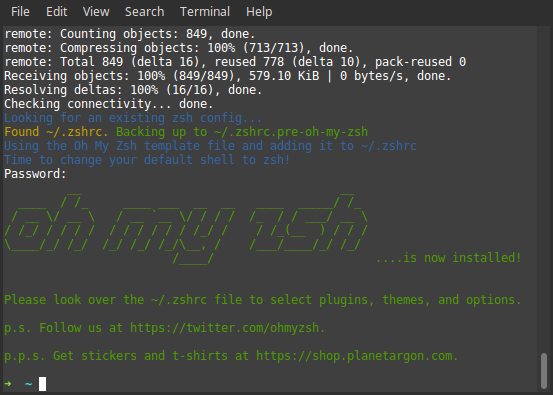
Customizing Oh-My-Zsh
After the installation script finishes, the command prompt may look different.
It means Oh-My-Zsh was successfully installed. If the prompt looks too
minimalistic, don't panic. Oh-My-Zsh accepts themes, and this is just the
default one: robbyrussell. To change it, go to the home folder, edit the
hidden file .zshrc, and change the variable ZSH_THEME to bureau, which
is my favourite theme:
$ cd ~
$ vim .zshrc
  ...
  ZSH_THEME="bureau"
  ...
$ source .zshrc
For a complete list of themes, check out the [theme catalogue][theme-catalogue]. Make sure you have some time to spare because trying new themes is addictive.
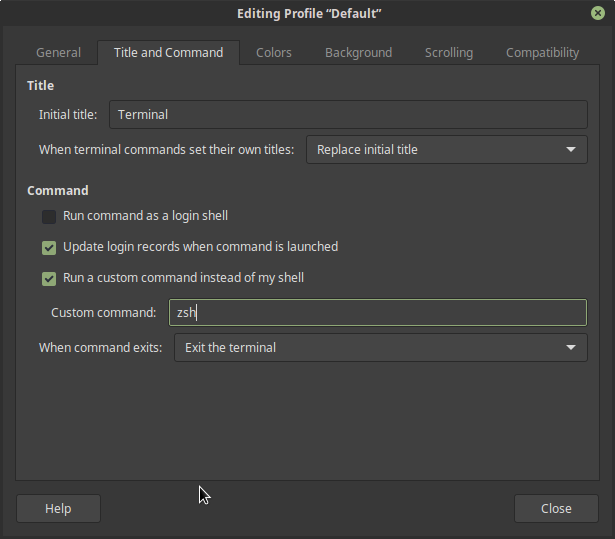
Oh-My-Zsh won't start by default. To activate it, we have to type $ zsh every
time we open a new terminal. If you are convinced that Oh-My-Zsh is your thing,
you can make sure it is always available. On the terminal window, select
Edit > Profile Preferences in the menu. In the new window, go to the tab
Title and Command, select the field Run a custom command instead of my shell
and type zsh in the Custom command field. Restart the terminal to see it
in action.
Git Integration
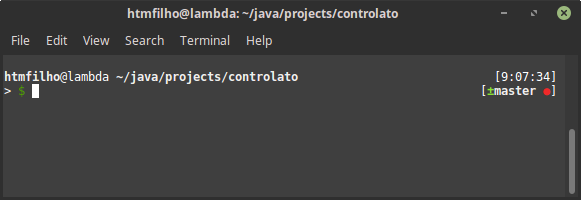
What I love about Oh-My-Zsh is its integration with Git, the smart auto-complete, and all the information it shows in a single prompt. The theme bureau shows:
-
my location, so I don't have to type
pwdall the time -
the time, which is useful to know how long the last operation took by comparing the time of the subsequent prompt
-
the current branch and its state with a rich set of colourful symbols, when I'm in a Git repository.
Environment Variables
Defining and loading environment variables is also a pleasure. All we have to do is create a file in the ZSH custom folder with the bash script we want to execute:
$ cd $ZSH_CUSTOM
$ touch env.zsh
Open the env.zsh file and add the script, in this case, the definition of
environment variables:
export PATH=$PATH:/usr/local/go/bin
export PATH=$PATH:~/go/bin
Finally, we can close the terminal window and open a new one to apply our changes.
Please comment below with your questions, thoughts, and which theme suits you best.